Prebuilt Quickstart
Overview
This guide will walk you through the steps to create a video conferencing app using Prebuilt component of the room-kit package.
Prerequisites
- Android: A basic familiarity with Android is required to follow this guide.
- 100ms account: You need to have a 100ms account to create a room and get a
room-code. You can create a 100ms account here. - Room-code: Prebuilt components require a
room-codeto join a room. You can get aroom-codefor a room using the 100ms dashboard. Refer to this guide to learn more about room codes.
Start a New Android Project (or use an existing one)
Here's how to create a new Android project.
Install Roomkit
The room-kit library is available on Maven. Add it your app level build.gradle in the dependencies block.
Latest Version:

dependencies { ....
    implementation "live.100ms:room-kit:$GET_VERSION_FROM_ABOVE_BADGE"
}
Add the Prebuilt Component
Look up how to get room code in this guide.
Launch the App
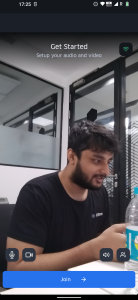
You will see a preview of your own video and can turn it on or off.
Join a Room
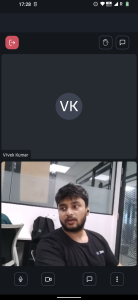
Here's what joining a room with another person looks like.
Additional Parameters
Additional properties that can be specified in HMSPrebuiltOptions are userName and userId.
Username: The user's display name. UserId: An id that you may choose so that peers on 100ms can be associated with customers identifiers from your system.
class HMSPrebuiltOptions {
  val userName : String?, //Peer user name
  val userId: String?, // Optional Customer given User-id
}
Customizing Foreground Notification
When your app goes to the background during an active call, a foreground service notification is displayed to keep the call alive. You can customize this notification to match your app's branding using CallNotificationConfig.
Available Options
| Parameter | Type | Default | Description |
|---|---|---|---|
smallIcon | @DrawableRes Int? | Default icon | Small icon shown in status bar and notification header. Should be monochrome for best results. |
largeIcon | @DrawableRes Int? | Default icon | Large icon shown on the right side of the notification. Can be full-color. |
title | String? | "Call in progress" | Notification title text. |
text | String? | "Tap to return to the call" | Notification body text. |
channelName | String? | "Ongoing Call" | Name for the notification channel (visible in system settings). |
channelDescription | String? | Default description | Description for the notification channel. |
Example Usage
import live.hms.roomkit.ui.HMSRoomKit
import live.hms.roomkit.ui.HMSPrebuiltOptions
import live.hms.roomkit.ui.notification.CallNotificationConfig

class MainActivity : AppCompatActivity() {
    override fun onCreate(savedInstanceState: Bundle?) {
        super.onCreate(savedInstanceState)

        val roomCode = "<room-code>"

        val notificationConfig = CallNotificationConfig(
            smallIcon = R.drawable.my_app_logo,      // Your app's notification icon
            largeIcon = R.drawable.my_app_icon,      // Optional larger icon
            title = "MyApp - Call Active",
            text = "Tap to return to your call",
            channelName = "MyApp Calls",
            channelDescription = "Notifications for ongoing calls"
        )

        val options = HMSPrebuiltOptions(
            userName = "<my-name>",
            callNotificationConfig = notificationConfig
        )

        HMSRoomKit.launchPrebuilt(roomCode, this, options)
    }
}
All parameters are optional. If not provided, default values will be used.
Sample Code
The sample project for the library is at https://github.com/100mslive/AndroidPrebuiltDemo#readme you can download the app for it here.